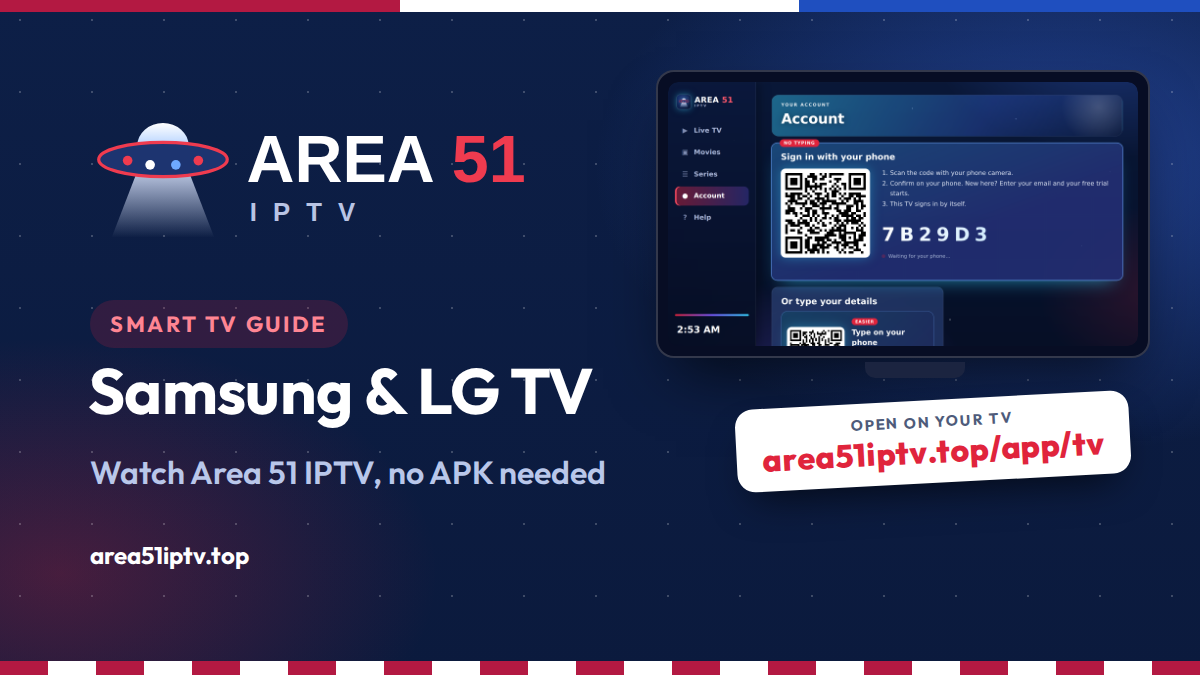
Samsung and LG make the most popular smart TVs in the world, but neither one can install Android apps. That means the Area 51 IPTV app cannot be installed on a Samsung or LG TV the way it installs on a Firestick. You can still watch your subscription on these TVs, and in this guide we show you five ways to do it, starting with the one that needs nothing but your TV remote and your phone camera.
The short version
- Samsung TVs run Tizen and LG TVs run webOS. Neither installs APK files, and Downloader is not available on them.
- Quickest method: open area51iptv.top/app/tv/ in the TV’s web browser and sign in by scanning the QR code with your phone. There is nothing to install and nothing to type.
- Using your phone: mirror an Android phone, or use AirPlay from an iPhone, to send the Area 51 IPTV app to the TV.
- Best everyday experience: plug a Fire TV Stick or Android TV stick into the TV and install the app with Downloader code 3523306.
- New here? Every method works with the free 24-hour trial.
Why Samsung and LG TVs Are Different
A Firestick, an Android TV box and a Google TV all run on Android. They can install apps from outside the official store, which is how the Area 51 IPTV app installs with the Downloader code. Samsung and LG use their own systems:
- Samsung smart TVs run Tizen and only install apps from the Samsung app store.
- LG smart TVs run webOS and only install apps from the LG Content Store.
Neither system can open an APK file, so any guide that promises to “install an APK on a Samsung or LG TV” will not work. The good news is that both TVs have a built-in web browser, screen mirroring and, on most recent models, AirPlay. Those are all you need.
The Five Methods Compared
| Method | What you need | Best for |
|---|---|---|
| 1. TV browser | Your TV remote and a phone camera | Fast start, nothing to install |
| 2. Screen mirroring | An Android phone | Android users |
| 3. AirPlay | An iPhone or iPad and a recent TV | Apple users |
| 4. TV store IPTV player | Your M3U link or Xtream Codes login | Using a player you already like |
| 5. Add a Firestick | A Fire TV Stick or Android TV stick | The best everyday experience |
Method 1: The Area 51 IPTV TV App in Your TV Browser
Area 51 IPTV has a TV version of the app that runs in a web browser. It shows Live TV, Movies, Series, Account and Help in large tiles that are made for a remote, and it signs you in with a QR code, so you never have to type a password with the remote.
On a Samsung TV
- Press Home on the remote and open the Internet app, which is Samsung’s web browser. If you do not see it, look under Apps.
- Select the address bar and type area51iptv.top/app/tv/, then press Enter.
- Choose Sign In. A QR code and a 6-character code appear on the TV.
- Scan the QR code with your phone camera. Enter your email on the page that opens and confirm. If you are new, your free trial starts at this step.
- Your TV signs in by itself within a few seconds. Choose a channel and enjoy.
On an LG TV
- Press Home on the remote and open the Web Browser app.
- Enter area51iptv.top/app/tv/ in the address bar.
- Choose Sign In and scan the QR code with your phone, then confirm with your email.
- To open it faster next time, open the browser’s More menu and select Add to Bookmarks, as explained in LG’s web browser guide.
TV browsers are slower than a phone or a Firestick, and a few stream formats do not play in a TV browser. If a channel will not start, try another one or switch to Method 5 for the best results.
Method 2: Mirror Your Android Phone
With screen mirroring, the TV shows exactly what is on your phone. Both Samsung and LG TVs support it.
- Install the Area 51 IPTV app on your Android phone and start your trial or sign in.
- Connect your phone and your TV to the same Wi-Fi network.
- Swipe down to open Quick Settings. Tap Smart View on a Samsung phone, or Screen Share, Cast or Screen mirroring on other phones.
- Select your Samsung or LG TV from the list. If the TV asks, press OK or Allow with the remote.
- Open the Area 51 IPTV app, start a channel and turn your phone sideways for full screen.
For more detail, see Samsung’s screen mirroring guide and LG’s guide to mirroring a smartphone.
Method 3: AirPlay from an iPhone or iPad
Many Samsung and LG TVs work with Apple AirPlay 2, so you can send video from an iPhone or iPad straight to the TV.
- Samsung: all 2019 and newer Samsung smart TVs, and select 2018 models after a software update, according to Samsung’s AirPlay announcement.
- LG: 2018 and newer models in the supported series, listed on LG’s AirPlay 2 page. On LG TVs, turn AirPlay on in Home Dashboard, AirPlay, AirPlay and HomeKit Settings.
- Connect your iPhone or iPad and your TV to the same Wi-Fi network.
- On your iPhone or iPad, open area51iptv.top/app in Safari, start your trial or sign in, and play a channel.
- Open Control Center, tap Screen Mirroring and choose your TV. Enter the code shown on the TV if asked.
Method 4: An IPTV Player from the TV App Store
If you prefer an app that lives on the TV itself, both stores offer IPTV players that accept an M3U link or Xtream Codes login.
- Open the Apps store on a Samsung TV or the LG Content Store on an LG TV.
- Search for IPTV player and check the rating and recent reviews.
- Install a player that supports M3U or Xtream Codes.
- Sign in with the server, username and password from your welcome email, or paste your M3U link.
Method 5: Add a Firestick or Android TV Stick (Best Experience)
The smoothest long-term option is an inexpensive streaming stick in a free HDMI port. You get the full Area 51 IPTV app with the native player, subtitles, QR sign-in and live chat support.
- Plug the stick into an HDMI port on your Samsung or LG TV and connect its power adapter.
- Press Source (Samsung) or Input (LG) on the remote and select that HDMI port.
- Install the free Downloader app, open it and enter the code 3523306, then select Go.
- Choose Install, then Open, and start your free trial with one click.
The full walkthrough with screenshots is in our guide Area 51 IPTV App: What It Is and How to Install It on Firestick.
Tips for a Smooth Picture
- Use 5 GHz Wi-Fi or a cable. Both TVs have an Ethernet port, and a cable gives the most stable stream.
- Keep the TV software up to date. Updates improve the browser, mirroring and AirPlay.
- Stay on the same network. Mirroring and AirPlay only work when the phone and TV share one Wi-Fi network.
- Restart before a big game. A quick restart of the router and TV fixes most problems. See how to stop buffering for more tips that apply to any device.
Have a Roku as well? Read how to watch Area 51 IPTV on Roku.
Samsung and LG TV FAQ
Can I install the Area 51 IPTV APK on a Samsung or LG TV?
No. Samsung TVs run Tizen and LG TVs run webOS, and neither installs Android APK files. Use the TV app in the browser, mirroring, AirPlay, a TV store player or a Firestick instead.
Do I need to type my password on the TV?
No. In the TV browser app, choose Sign In and scan the QR code with your phone. You confirm on your phone and the TV signs in by itself.
Can I start the free trial from my Samsung or LG TV?
Yes. Scan the sign-in QR code and enter a new email on your phone. Your free 24-hour trial starts and the TV signs in automatically.
Which method gives the best picture?
A Firestick or Android TV stick, because the stream plays on a device built for it. The browser method is the quickest way to start, and mirroring depends on your phone and Wi-Fi.
Does this work on older Samsung and LG TVs?
The browser method works on most smart TVs from the last several years. AirPlay needs a 2018 or newer model, depending on the series. Any TV with an HDMI port can use a Firestick.
Try It on Your Samsung or LG TV Today
Open area51iptv.top/app/tv/ on your TV, scan the code and watch free for 24 hours.
Start My Free Trial See All App DownloadsSources