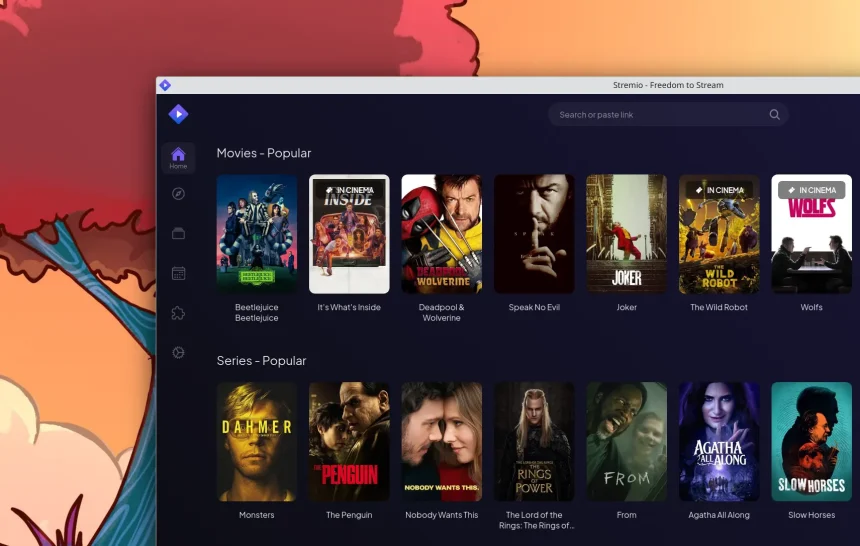
Stremio is a great media center, but it does not have a built-in place to enter an IPTV login. To play your Area 51 IPTV subscription inside Stremio, you need a community add-on that reads your M3U link or Xtream Codes details. This guide shows how it works, how to set it up step by step, and what to check before you type your login anywhere.
The short version
- Stremio does not support M3U or Xtream Codes on its own. A third-party add-on does the job.
- You need an active Area 51 IPTV plan or a free 24-hour trial. Your login details arrive by email.
- You set up the add-on once in a web browser. It then follows your Stremio account to your other devices.
- The add-on is made by the community, not by Stremio or Area 51 IPTV, and features such as the TV guide may be limited.
- For the best live TV experience, the Area 51 IPTV app or TiviMate is still the better choice.
How IPTV Works in Stremio
Stremio organizes content from different sources into one library. It does not host video itself. Everything comes from add-ons, small extensions that connect the app to a source.
There is no official IPTV add-on. The option most guides use is the open-source M3U/EPG add-on on GitHub. It reads an M3U playlist or an Xtream Codes account and shows the channels, movies and series inside Stremio. Its developers state that the project does not provide any IPTV content. You bring your own subscription.
What You Need
| Item | Details |
|---|---|
| Stremio | Installed on your device and signed in with a free Stremio account. Get it from the official Stremio downloads page. |
| Area 51 IPTV login | Xtream Codes details (server URL, username, password) or your M3U link, from your welcome email. |
| A web browser | On a computer or phone, to fill in the add-on setup page. |
Cannot find the email? Check your spam folder or contact support and we will send your details again. Using an iPhone or iPad? Read how to use Stremio on iPhone and iPad first.
Before You Start: Protect Your Login
The add-on has to know your login to load your channels. That means you type your details into the add-on’s setup page, and they are stored inside the install link it creates. Keep these points in mind:
- A hosted setup page is run by a third party. The public page that most guides point to (stiptv.ddns.me, linked from the add-on’s GitHub page) is not operated by Stremio or by Area 51 IPTV. When you use it, your login is sent to that server.
- Self-hosting is the private option. The add-on can run on your own computer or server with Node.js or Docker, so your details never leave your network. The GitHub page explains how. This is for advanced users.
- Never share the install link. The link contains your login. Anyone who has it can use your account.
- Not comfortable with this? Use the Area 51 IPTV app instead. Your login stays between your device and our servers.
Method 1: Set Up with Xtream Codes (Recommended)
- On a computer or phone, open the add-on’s setup page in your browser: the hosted page, or your own address if you self-host.
- Choose Xtream API as the login method.
- Enter the server URL exactly as it appears in your email, including http:// and the port number if there is one.
- Enter your username and password. They are case sensitive.
- Turn on the EPG option if you want the add-on to try loading the TV guide.
- Select Install/Update Addon and wait while the page checks your details.
- Select Open in Stremio. When Stremio opens, select Install.
You should see a message that the add-on is installed. Because add-ons are tied to your Stremio account, it also appears on your other devices when you sign in with the same account.
Method 2: Set Up with an M3U Link
- Open the add-on’s setup page in your browser.
- Choose Direct Links as the login method.
- Paste your M3U link from the email into the playlist field.
- If your email includes an EPG link, paste it into the guide field. This step is optional.
- Select Install/Update Addon, then Open in Stremio and Install.
Tip: M3U links are long. Copy and paste the link instead of typing it, and make sure no space is added at the start or the end.
Button names can differ slightly between versions of the add-on, but the order of the steps is the same.
Find and Play Your Channels
- Open Stremio and go to Discover.
- Open the type menu and choose the catalog added by the add-on, such as TV or Channels.
- Pick a category, choose a channel and select the stream to start watching.
The first load can take a minute, because the add-on has to read your full channel list. If a channel does not start, go back and try it again or pick another stream of the same channel.
What to Expect: Limits of Stremio for Live TV
Stremio was built for movies and series, so live TV through an add-on is not as polished as a dedicated IPTV player. In its February 2026 test, TROYPOINT reported that the TV guide was unavailable and that some features did not work as expected.
| Stremio with add-on | Area 51 IPTV app or TiviMate | |
|---|---|---|
| Setup | Browser page plus add-on install | Sign in inside the app |
| TV guide (EPG) | Limited or missing | Full guide |
| Channel switching | Slower, through menus | Fast, made for a remote |
| Where your login goes | Through the add-on’s server | Directly to our servers |
| Best for | People who already live in Stremio | Everyday live TV and sports |
Our advice: use Stremio if you want everything in one library, and keep a dedicated player for big games. See how to set up Area 51 IPTV on TiviMate or how to install the Area 51 IPTV APK.
Troubleshooting
| Problem | What to do |
|---|---|
| The setup page rejects your details | Check every character of the server URL, username and password. Remove extra spaces and keep http:// and the port. |
| The add-on installs but no channels appear | Close and reopen Stremio, then look under Discover. Large channel lists take time to load the first time. |
| Channels will not play | Confirm your plan or trial is still active and check how many devices are watching at the same time. |
| The TV guide is empty | This is a known limit of the add-on. Use the Area 51 IPTV app or TiviMate for a full guide. |
| Picture freezes or buffers | Restart your router and device and use Ethernet or 5 GHz Wi-Fi. See how to stop buffering. |
| You changed your password | Open the setup page again, enter the new details and select Install/Update Addon. |
| Still stuck | Contact our support team. We answer 24/7 on Telegram and email. |
Area 51 IPTV on Stremio FAQ
Does Stremio support IPTV?
Not on its own. Stremio has no built-in field for an M3U link or Xtream Codes login. A community add-on adds that feature.
Is the IPTV add-on made by Stremio or Area 51 IPTV?
No. It is an open-source project from an independent developer. We explain how to use it, but we do not control or maintain it.
Is it safe to enter my login on the setup page?
Your login passes through whoever runs that page. If you want to keep it private, host the add-on yourself or use the Area 51 IPTV app, and never share your install link.
Does it work on Firestick and Android TV?
Yes. Install Stremio on the device, sign in with the same Stremio account you used during setup, and the add-on appears automatically.
Can I remove the add-on later?
Yes. Open the Add-ons page in Stremio, find the add-on in your installed list and uninstall it.
No Login Yet? Try It Free
Get a free 24-hour trial and test Area 51 IPTV in Stremio, in our own app or in any player you like.
Start My Free Trial See Our Plans