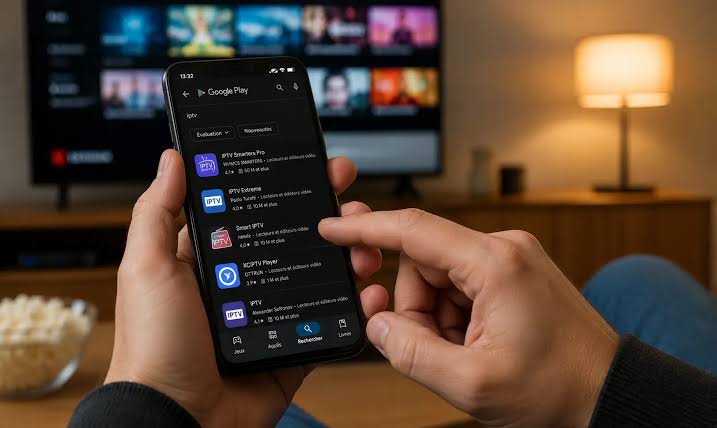
The Area 51 IPTV app is the fastest way to start watching: install it once, tap Start Free Trial, and your 24-hour trial loads automatically. This guide walks you through installing the Area 51 IPTV APK on an Amazon Firestick, Android TV, Google TV and Android phones, step by step.
Before you start
- Setup takes about 5 to 10 minutes. You only do it once.
- Always download the app from our official Area 51 IPTV application page.
- Check your Fire TV model first. The Fire TV Stick 4K Select runs Amazon’s newer Vega OS, which does not support installing APK files (details below).
- No credit card is needed. Your free trial starts inside the app.
Step 0: Check That Your Device Is Compatible
The Area 51 IPTV app is an Android app, delivered as an APK file. It runs on:
| Device | Supported? | Notes |
|---|---|---|
| Firestick / Fire TV (Fire OS) | Yes | Includes Fire TV Stick 4K Max and earlier Fire OS models |
| Fire TV Stick 4K Select (Vega OS) | No | Vega OS does not install APK files |
| Android TV and Google TV | Yes | Including many Sony, TCL and Hisense Smart TVs |
| Android phones and tablets | Yes | Android 8.0 or newer recommended |
| Apple TV, iPhone, Samsung and LG TVs | Not the app | Use the setup we send when you request a trial |
How to Install the Area 51 IPTV APK on Firestick
Amazon’s Fire TV devices can install apps from outside the Appstore once you allow it. The popular free Downloader app by AFTVnews makes this easy, because it has a built-in browser you can control with your remote.
Part 1: Install Downloader
- From the Fire TV home screen, open Find and select Search.
- Type Downloader and select the app by AFTVnews.
- Select Get or Download and wait for it to install.
Part 2: Allow Downloader to install apps
- Go to Settings (the gear icon) and open My Fire TV. On Fire TV Smart TVs, this is called Device & Software.
- If you do not see Developer options, open About, highlight your device name and press the select button 7 times until you see “You are now a developer.”
- Go back, open Developer options and select Install unknown apps.
- Find Downloader in the list and switch it ON.
These steps follow AFTVnews’ guide to enabling unknown apps on Fire TV, which also covers older menu layouts.
Part 3: Download and install Area 51 IPTV
- Open Downloader and allow any permission it asks for.
- In the address box, type area51iptv.top/application and select Go.
- On our application page, select the Download APK button.
- When the download finishes, select Install, then Open.
- Back in Downloader, select Delete to remove the installer file and free up space. The app stays installed.
Tip: Move the app to the front of your home screen. Hold the Home button, choose Apps, highlight Area 51 IPTV, press the menu button (three lines) and choose Move to front.
How to Install on Android TV and Google TV
Menu names vary slightly by TV brand, but the process is the same:
- Install Downloader or a file manager app from the Google Play Store on your TV.
- Open Settings, then Apps, then Security & restrictions, and select Unknown sources. On Google TV, if you do not see this option, first go to Settings, System, About and press select on Android TV OS build 7 times to turn on developer mode.
- Allow the app you will use to download the APK (for example, Downloader).
- Open that app, go to area51iptv.top/application and download the APK.
- Select Install, then Open.
How to Install on an Android Phone or Tablet
- Open Chrome and go to area51iptv.top/application.
- Tap Download APK. If Chrome warns that the file type can be harmful, tap Download anyway. This appears for every APK downloaded outside the Play Store.
- Open the downloaded file from your notifications or the Downloads folder.
- When asked, tap Settings and turn on Allow from this source for Chrome.
- Go back and tap Install, then Open.
Since Android 8.0, this permission is granted per app instead of for the whole phone, which is safer. Google explains the change in the Android Developers Blog. After installing, you can switch the permission back off.
First Launch: Start Your Free 24-Hour Trial
This is where the Area 51 IPTV app is different from a generic player. You do not need to type any server details:
- Open the app and select Start Free Trial.
- Your 24-hour trial account is created and loaded automatically, usually in seconds.
- Browse Live TV, open the TV guide or pick a movie from VOD.
- Liked it? Request a plan inside the app or choose a plan on our website. Your channels keep running without a gap. See every option in our 2026 plans and pricing guide.
Want to get the most out of your 24 hours? Our guide What Is IPTV? The Complete Guide for US Cord-Cutters includes a checklist of what to test and how to avoid buffering.
Troubleshooting Common Install Problems
| Problem | What to do |
|---|---|
| No “Developer options” menu on Fire TV | Open Settings, My Fire TV, About, and press select on your device name 7 times. |
| “App not installed” | Free up storage, uninstall any older copy of the app, then install again. |
| “There was a problem parsing the package” | The download was incomplete. Delete the file and download it again. |
| Install button is greyed out | Press the Back button once to close any on-screen overlay, then try again. |
| App opens but will not play | Check your internet speed, restart your device, then contact support. |
Area 51 IPTV APK FAQ
Is the Area 51 IPTV app free?
Yes. The app is free to download and includes a free 24-hour trial. You only pay if you choose a plan afterward.
Why is the app not in the Amazon Appstore or Google Play?
The Area 51 IPTV app is distributed directly as an APK from our website, which is why your device asks for permission to install it. Always download it from our official application page.
Can I install the app on more than one device?
Yes. You can install it on as many of your own devices as you like. How many can stream at the same time depends on your plan.
How do I update the app?
Download the latest APK from our application page and install it over the current version. Your settings stay in place.
Should I turn “Install unknown apps” off afterward?
You can, and it is good practice. Turn it back on only when you need to install an update.
Get the Area 51 IPTV App
Install it once, tap Start Free Trial and start watching in minutes.
Download the APK Need Help? Ask Us