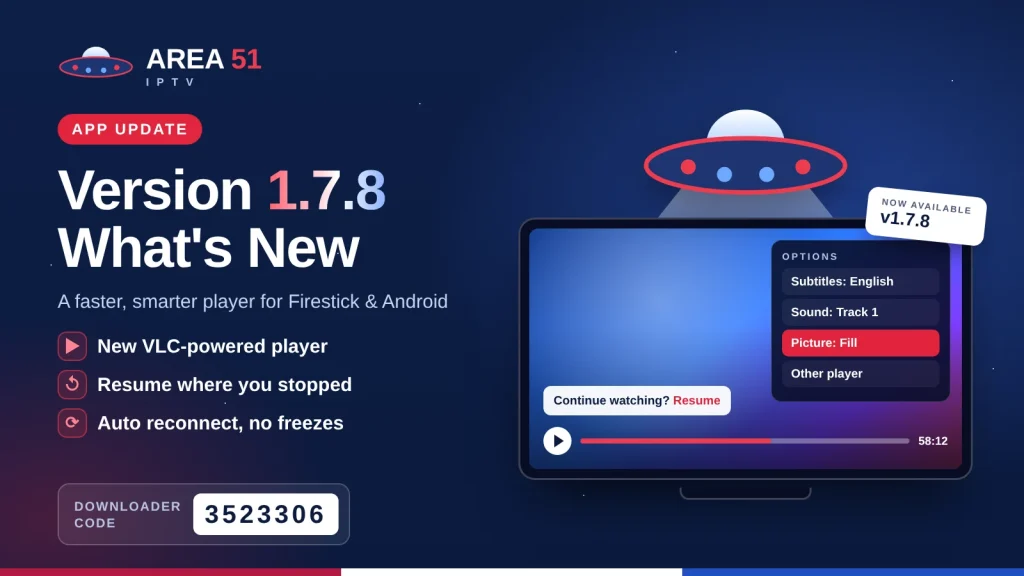
Area 51 IPTV app 1.7.8 is out, and its biggest change is the player. Channels that used to show a black screen now play. Movies and episodes continue where you stopped. If your connection drops, the stream reconnects by itself. This guide covers everything new in the update, how to use it with your TV remote, and how to install it in two minutes on Firestick, Android TV and Android phones.
The short version
- New VLC-powered player: plays more channels and fixes the black screen some channels showed before.
- Continue watching: movies and episodes ask if you want to Resume or Start over, and the next episode starts by itself.
- Auto reconnect: if the internet or the server drops, the player tries again by itself and tells you what is happening.
- More control: choose sound tracks, subtitles and picture size (Fit, Fill, Stretch, 16:9, 4:3) from the Options menu.
- How to update: on Firestick, open Downloader and enter code 3523306. On Android phones, download the APK from our Application page.
What Is New in Area 51 IPTV 1.7.8
Our last big update, version 1.3, made starting a free trial a one-click job. Version 1.7.8 focuses on what happens after you press play. Here is a quick overview:
| Feature | What it means for you |
|---|---|
| VLC-powered player | A new playback engine that handles more stream types, so channels that showed a black screen now play. |
| Backup player | If a stream will not start on your device, you can switch to Other player in one click. If the main engine cannot start at all, the app switches for you. |
| Auto reconnect | When the connection drops, you see Reconnecting… and the app keeps trying, with a countdown, instead of freezing. |
| Resume playback | Movies and episodes remember where you stopped. Choose Resume or Start over. |
| Next episode | When an episode ends, the next one starts by itself. You can also press Next ▶. |
| Options menu | Sound tracks, subtitles, five picture sizes, stream info and the channel or episode list, all in one place. |
| Clear messages | Instead of a spinning wheel, the app tells you if a channel is offline, a video was removed, or the server cannot be reached. |
| Update notice | When a newer version is available, the app tells you and shows the Downloader code to install it. |
The New Player: Fewer Black Screens, Fewer Freezes
The heart of version 1.7.8 is a new player built on libVLC, the same open-source engine inside the free VLC media player. You do not need to install VLC on your Firestick or Android TV, because it is built right into the app.
Why channels play better now
Some live channels are sent in formats or with sound tracks that the built-in Android player on many TV sticks cannot handle. The result was a black screen or a picture with no sound. The new engine decodes these streams itself, so they play like any other channel. It also keeps a small safety buffer, a little larger for movies than for live TV, which helps smooth out short drops in your internet speed.
It reconnects by itself
Live TV depends on your internet and on the stream server. If either drops for a moment, the player now shows Reconnecting… and tries again on its own. If the connection is still down, it shows No connection to the server. Trying again in… with a countdown, and you can press Retry at any time. If a movie stream cuts off before the end, the player picks it up again from the same spot.
A backup player, one click away
No player handles every stream on every device. That is why 1.7.8 includes a second player. Open Options and choose Other player to play the same channel with your device’s built-in player. If the main player cannot start on your device at all, the app switches to the backup automatically, so you are not left with an empty screen.
Messages that tell you what is wrong
When something goes wrong, the app now says what happened in plain words, for example:
- This channel is offline right now. The channel is down at the source. Try another channel or come back later.
- This video is no longer available on the server. The movie or episode was removed.
- Can’t reach the server. Check your internet connection, then press Retry.
If you see the same message on many channels, our guide on how to stop buffering on Firestick walks you through the usual fixes.
Movies and Series: Resume and Next Episode
Movie night and binge watching are much smoother in 1.7.8:
- Continue where you stopped. Open a movie or episode you started before and the app asks Continue where you stopped? Pick Resume or Start over.
- Next episode starts by itself. When an episode ends, the next one in the season plays automatically. Press Next ▶ to skip ahead at any time.
- Episode list in the player. Open Options and choose Episodes to jump to any episode without leaving the player.
- Fast skipping. Jump 10 seconds with the left and right buttons, or 30 seconds with rewind and fast forward.
Movies and series need an Area 51 account or an Xtream Codes sign-in. An M3U link shows live channels only.
Sound, Subtitles and Picture Size
Press the Menu button (☰) on your remote while watching to open Options. On a phone, tap the screen and then tap ⋯. From there you can change:
- Subtitles: turn subtitles on or off, or switch language when a channel or movie has more than one.
- Sound: switch between sound tracks, for example a second language.
- Picture: choose Fit, Fill, Stretch, 16:9 or 4:3 to get rid of black bars or fix a squeezed picture.
- Stream info: turn it on to see technical details about the stream, which is useful when you contact support.
- Channel list or Episodes: pick something else to watch without leaving the player.
On Android phones and in the web app, you can also tap CC to choose subtitles and even load your own subtitle file.
Remote Control Shortcuts
Area 51 IPTV is made for the TV remote. These shortcuts work in the new player on Firestick and Android TV:
| Button | Live TV | Movies and series |
|---|---|---|
| Up / Down | Change channel | Next subtitle / next sound track |
| Left / Right | Show channel info | Back or forward 10 seconds |
| OK | Open the channel list | Pause or play |
| Rewind / Fast forward | Not used | Back or forward 30 seconds |
| Play / Pause | Pause or play | Pause or play |
| Channel + / Channel − | Change channel | Next or previous episode |
| Number buttons | Type a channel number to jump to it | Not used |
| Menu (☰) | Options | Options |
| Back | Close the player | Close the player (your spot is saved) |
Remotes with a Last channel, Subtitles or Audio button work too. You can also jump back to the channel you watched before from Options.
Sign In on Your TV with Your Phone
Typing an email with a TV remote is slow, so the TV app lets you skip it:
- Open Area 51 IPTV on your Firestick or Android TV and go to Account.
- Scan the code on screen with your phone camera. No camera? Go to the address shown on the TV and type the short code.
- On your phone, enter your email to start a free 24-hour trial, or confirm your existing account. The TV signs in by itself.
If you have Xtream Codes or M3U details from your welcome email, you can type them on your phone the same way, or enter them with the remote. New customers can read more on our free trial page.
How to Update to Version 1.7.8
If you already have Area 51 IPTV, the app shows Update available: version 1.7.8 when you open it. Follow the steps for your device.
Firestick, Fire TV and Android TV
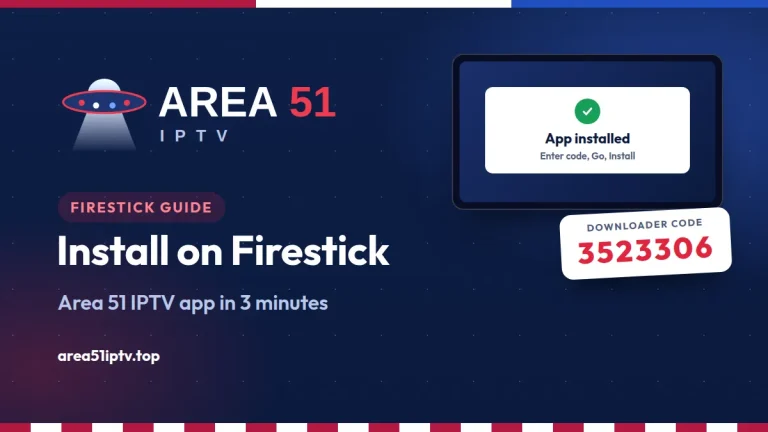
- Open the free Downloader app.
- Type 3523306 in the URL box and select Go.
- When the download finishes, select Install. The new version installs over the old one.
- Open Area 51 IPTV. You will see the new player the next time you start a channel.
Installing for the first time? Our Firestick and Android install guide shows how to install Downloader and allow it to install apps, with screenshots.
Android phones and tablets
- Open our Application page on your phone and tap Download APK for Android.
- Open the downloaded file and tap Update or Install. If Android asks, allow your browser to install apps.
iPhone, iPad and computers
There is nothing to update. The Area 51 IPTV web app always loads the newest version when you open it.
Which Devices Can Run It?
| Device | How to get Area 51 IPTV 1.7.8 |
|---|---|
| Amazon Firestick and Fire TV | Downloader code 3523306 |
| Android TV and Google TV boxes | Downloader code 3523306 |
| Android phones and tablets | APK from the Application page |
| iPhone, iPad, Windows and Mac | Web app in your browser |
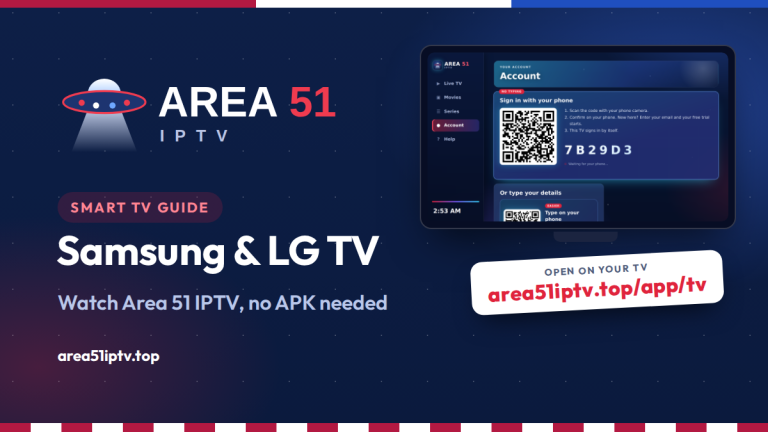
| Samsung and LG smart TVs | See our Samsung and LG TV guide |
The Android app needs Android 5.0 or newer, which covers every Fire TV Stick and nearly every Android TV box sold in recent years. The download is about 43 MB.
Troubleshooting
- A channel shows a black screen or has no sound: open Options and choose Other player, or try the channel again in a minute.
- The picture is squeezed or has black bars: open Options and change Picture to Fill or 16:9.
- “No connection” when the app opens: check your Wi-Fi, then press Try Again.
- Buffering on many channels: restart your router and device, or use a wired connection. See our buffering fixes.
- Still stuck? Open Help in the app for live chat, message us on Telegram, or use our contact page.
Area 51 IPTV 1.7.8 FAQ
Is the 1.7.8 update free?
Yes. The app and all updates are free. You only pay for your Area 51 IPTV plan.
Do I lose my account when I update?
No. Installing 1.7.8 over the old version keeps you signed in. If you had to uninstall the old version first, sign in again with the same account.
Do I need to install VLC on my Firestick?
No. The VLC engine is built into the Area 51 IPTV app on Firestick, Android TV and Android phones.
Can I start a free trial in the new version?
Yes. Go to Account and tap Start Free Trial. The trial lasts 24 hours and needs no card. Each device can use one free trial in a 30-day period.
Which plan should I choose after the trial?
Every plan includes the same channels, movies and series. Our plans and pricing guide explains the differences.
I am new to IPTV. Where should I start?
Read What is IPTV? for a simple introduction, then install the app and start your free trial.
Get Area 51 IPTV 1.7.8 Today
On Firestick, open Downloader and enter 3523306. Then watch free for 24 hours.
Start My Free Trial See All App Downloads
Comments